On this page
- Why Should You Self-Host Multica?
- What Do You Need Before Deploying Multica?
- How Do You Deploy Multica with Docker?
- How Do You Connect OpenClaw as a Runtime?
- How Do You Secure a Self-Hosted Multica Deployment?
- How Do You Set Up PostgreSQL and pgvector?
- How Do You Monitor and Maintain Multica?
- What About Data Sovereignty for Australian Businesses?
- How Does Self-Hosted Multica Compare to the Cloud Version?
- What Are the Common Pitfalls of Self-Hosting?
- Frequently Asked Questions
- Can I run Multica on a Raspberry Pi?
- How much does it cost to self-host Multica?
- Can I migrate from the cloud version to self-hosted?
- Does self-hosted Multica support multiple teams?
- What happens if my server goes down?
Last Updated: April 2026
This guide walks through deploying Multica on your own infrastructure. Based on real deployments for Australian businesses that require data sovereignty and compliance.
Why Should You Self-Host Multica?
Self-hosting Multica gives you complete control over your AI agent infrastructure. Your data stays on your servers, your compliance requirements are met, and you avoid vendor lock-in. For Australian businesses subject to the Privacy Act 1988 or handling sensitive client data, self-hosting is not just a preference. It is a necessity.
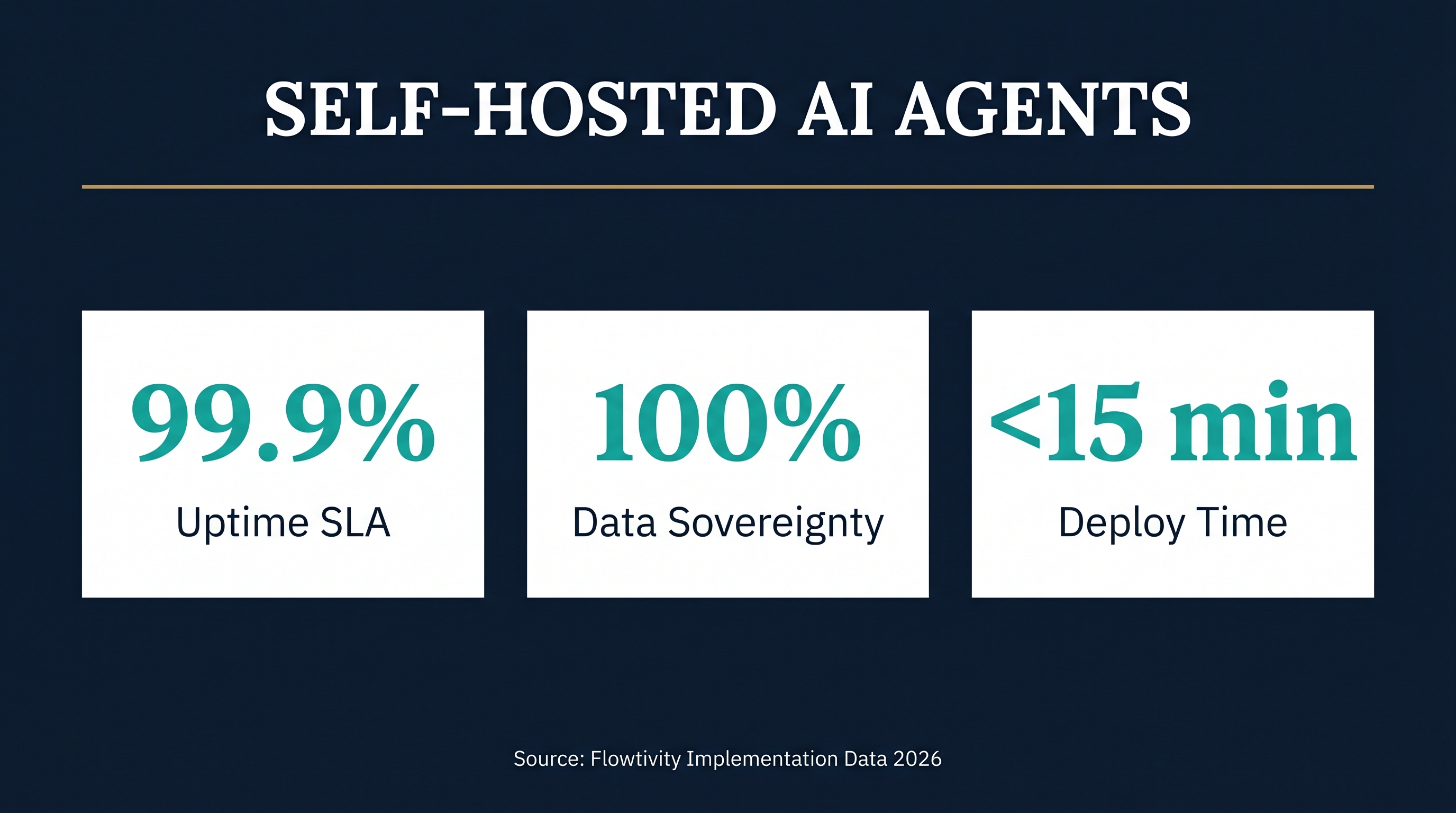
The key point is that self-hosted deployments give you 100% data sovereignty. Every task, every agent conversation, every skill definition stays within your infrastructure. No data leaves your network unless you explicitly configure it to. This matters for healthcare practices, legal firms, financial services, and government contractors.
If you are evaluating agent management platforms, our Multica vs Paperclip vs Claude Managed Agents comparison breaks down the options. For the broader infrastructure picture, see our OpenClaw vs Paperclip framework comparison.
What Do You Need Before Deploying Multica?
Before starting, you need a server with at least 4GB RAM, 2 CPU cores, and 20GB of storage. Multica runs a PostgreSQL database with pgvector extensions, a web application server, and connects to your AI runtimes. A modest VPS from providers like Contabo, Hetzner, or DigitalOcean handles this comfortably.
The most important factor is network access to your chosen AI runtimes. If you use OpenClaw, ensure the server can reach your OpenClaw gateway. If you connect to external APIs like OpenAI or Anthropic, the server needs outbound internet access. For fully air-gapped deployments, you need local model serving via Ollama or vLLM.
Prerequisites checklist:
- Linux server (Ubuntu 22.04+ recommended)
- Docker and Docker Compose installed
- Domain name with DNS pointing to your server
- SSL certificate (Let's Encrypt works)
- SMTP server for notifications (optional)
- At least one AI runtime to connect
How Do You Deploy Multica with Docker?
Multica ships with a Docker Compose configuration that gets you running in under 15 minutes. The deployment includes the Multica web application, PostgreSQL with pgvector, Redis for caching, and optional Nginx as a reverse proxy.
The key point is that Docker Compose handles the entire stack. You do not need to install PostgreSQL separately or configure complex networking. One command brings up everything, and one command tears it down.
Step-by-step deployment:
- Clone the Multica repository to your server
git clone https://github.com/multica/multica.git
cd multica
- Copy the example environment file and configure it
cp .env.example .env
- Edit .env with your settings:
- Set a strong
SECRET_KEY(generate withopenssl rand -hex 32) - Configure
DATABASE_URLif using an external database - Set
OPENCLAW_GATEWAY_URLto point to your OpenClaw instance - Add API keys for any external AI providers
- Start the stack
docker compose up -d
- Run the initial migration
docker compose exec app python manage.py migrate
- Create your admin user
docker compose exec app python manage.py createsuperuser
- Visit your domain and log in
Common first-deploy issues:
- Port 5432 conflict if PostgreSQL is already installed on the host. Change the mapped port in docker-compose.yml.
- Permission errors on Docker volumes. Ensure the Docker daemon has write access.
- SSL certificate failures. Check that your domain DNS has propagated before running Certbot.
How Do You Connect OpenClaw as a Runtime?
OpenClaw is the primary runtime for Multica agent tasks. Connecting it lets Multica dispatch coding tasks, research jobs, and automated workflows to your OpenClaw agents. The connection is straightforward but requires your OpenClaw gateway to be accessible from the Multica server.
In summary, you configure the OpenClaw gateway URL and an API key in Multica's settings. Multica then sends task definitions to OpenClaw, which routes them to available agents. Results flow back to Multica's task board automatically.
Connection steps:
- In Multica, navigate to Settings then Runtimes
- Click "Add Runtime" and select "OpenClaw"
- Enter your OpenClaw gateway URL (for example,
https://your-openclaw.example.com) - Paste your OpenClaw API key
- Click "Test Connection" to verify
- Save the configuration
Once connected, you can assign tasks from Multica's board to OpenClaw agents. Task status updates flow bidirectionally. When an agent completes a task, the Multica board updates in real time.
How Do You Secure a Self-Hosted Multica Deployment?
Security for a self-hosted Multica instance follows standard web application hardening practices. You need HTTPS, authentication controls, database security, network restrictions, and regular updates. The stakes are higher because your agents have access to code repositories, business data, and potentially production systems.
The most important factor is limiting what your agents can access. Each agent should have the minimum permissions needed for its tasks. Use separate API keys for each agent, restrict file system access, and never give agents credentials they do not need.
Security hardening checklist:
- Enable HTTPS with a valid SSL certificate (Let's Encrypt via Certbot)
- Set
SECURE_SSL_REDIRECT=Truein your Multica configuration - Use strong, unique passwords for all accounts
- Enable two-factor authentication for admin accounts
- Restrict database access to localhost only (do not expose PostgreSQL port)
- Set up a firewall (UFW on Ubuntu) allowing only ports 80, 443, and SSH
- Configure
ALLOWED_HOSTSto your specific domain - Rotate the
SECRET_KEYperiodically - Keep Docker images updated (
docker compose pull && docker compose up -d) - Set up fail2ban to block brute force login attempts
- Restrict the OpenClaw gateway to known IP addresses if possible
- Use environment variables for all secrets, never hardcode them
- Enable audit logging for agent actions
Network architecture for production:
- Place Multica behind a reverse proxy (Nginx or Caddy)
- Use Docker's internal networking to isolate the database
- Do not expose Redis or PostgreSQL ports to the internet
- Consider a VPN or WireGuard for admin access
How Do You Set Up PostgreSQL and pgvector?
Multica uses PostgreSQL with the pgvector extension for semantic search across agent tasks, skills, and knowledge. pgvector enables similarity search on embeddings, which powers Multica's skill matching and task routing. The Docker Compose stack includes a preconfigured PostgreSQL image with pgvector.
The key point is that pgvector must be initialized before Multica can use semantic features. The migration scripts handle this, but you need to ensure the extension is available in your PostgreSQL instance.
For the default Docker deployment: pgvector is included in the Docker image. No extra steps needed. The migrations create the required extensions and vector indexes automatically.
For an external PostgreSQL instance:
- Install pgvector on your PostgreSQL server:
-- Connect to your database and run:
CREATE EXTENSION IF NOT EXISTS vector;
- Verify the extension is available:
SELECT * FROM pg_available_extensions WHERE name = 'vector';
- Update your
DATABASE_URLin the Multica.envfile to point to your external instance
Performance tuning for pgvector:
- Use HNSW indexes for large datasets (faster queries, slower builds)
- Set appropriate
maintenance_work_memfor index creation - Consider IVFFlat indexes for smaller datasets
- Monitor query performance with
EXPLAIN ANALYZE
How Do You Monitor and Maintain Multica?
A self-hosted Multica deployment needs monitoring for uptime, performance, and disk usage. Agent tasks generate logs, database entries, and occasionally large artifacts. Without monitoring, you risk running out of disk space or missing failed tasks.
The most important factor is setting up alerts before you need them. Configure notifications for disk usage above 80%, failed agent tasks, and database connection errors. A silent failure in a self-hosted system is worse than a loud failure in a managed service.
Monitoring stack recommendations:
- Uptime monitoring: Use Uptime Kuma (self-hosted) or a service like Pingdom to check your Multica instance every 60 seconds
- Log aggregation: Send Docker logs to a central location. Loki with Grafana is lightweight and effective
- Database monitoring: Track PostgreSQL connection count, query performance, and disk usage
- Agent task monitoring: Check the Multica task board for stuck or failed tasks daily
- Disk usage alerts: Set alerts at 70% warning and 85% critical thresholds
Maintenance schedule:
- Weekly: Review failed tasks, check disk usage, rotate logs
- Monthly: Update Docker images, review security logs, check SSL certificate expiry
- Quarterly: Audit agent permissions, review access logs, test backup restoration
Backup strategy:
- PostgreSQL: Use
pg_dumpdaily, store backups off-site - Configuration: Keep your
.envanddocker-compose.ymlin a private git repository - Agent skills: These live in the database, so PostgreSQL backups cover them
- Test backup restoration monthly to ensure they work
What About Data Sovereignty for Australian Businesses?
Australian businesses handling personal information must comply with the Privacy Act 1988 and the Australian Privacy Principles. Self-hosting Multica within Australia ensures that agent task data, client information, and AI interaction logs never leave Australian jurisdiction.
In summary, data sovereignty means knowing exactly where your data lives and who can access it. With a self-hosted Multica instance on an Australian server, you have full visibility. No third-party provider can access your data, change their terms, or experience a breach that affects your infrastructure.
Australian hosting providers for Multica:
- Contabo (Sydney data center available)
- Vultr (Sydney and Melbourne)
- DigitalOcean (Sydney region)
- AWS ap-southeast-2 (Sydney)
- Self-hosted on-premises for maximum control
Compliance considerations:
- The Privacy Act requires reasonable steps to protect personal information
- Self-hosting gives you direct control over encryption, access controls, and data retention
- Healthcare providers should consider additional requirements under the My Health Records Act
- Financial services should align with APRA standards for data handling
- Legal firms have professional obligations around client data confidentiality
How Does Self-Hosted Multica Compare to the Cloud Version?
The cloud-hosted version of Multica is simpler to set up but sacrifices control. Self-hosting requires more upfront work but gives you data sovereignty, customization freedom, and no per-user pricing. For teams with compliance requirements or specific infrastructure needs, self-hosting is the clear choice.
The key distinction is that self-hosting is an infrastructure decision, not a feature decision. The core Multica features are identical. You get the same task board, skills system, agent management, and runtime connections. What changes is where it runs and who controls the data.
Self-hosted advantages:
- Complete data sovereignty and control
- No vendor lock-in
- Custom infrastructure integration
- No per-seat pricing limits
- Ability to air-gap for sensitive environments
- Full access to logs and audit trails
Cloud advantages:
- Zero infrastructure management
- Automatic updates and scaling
- Faster initial setup
- Built-in high availability
Cost comparison for a 10-person team:
- Self-hosted: roughly $20-50/month for a VPS plus setup time
- Cloud: typically $15-40 per user per month depending on the plan
For Australian businesses planning to run agents long-term, self-hosting pays for itself within 2-3 months.
What Are the Common Pitfalls of Self-Hosting?
Self-hosting Multica is straightforward but not without challenges. The most common issues we see in deployments are insufficient server resources, skipped security steps, and neglected maintenance. These are all preventable with proper planning.
The most important lesson from real deployments is to allocate enough resources upfront. A 2GB RAM server will struggle under load. Start with 4GB and scale up. It is easier to add resources to a working system than to recover from an overloaded one.
Pitfalls to avoid:
- Under-provisioning RAM. Agent tasks and pgvector indexing need memory. 4GB is the minimum, 8GB is comfortable.
- Skipping SSL. Browser security features and API calls require HTTPS. Set it up on day one.
- Not configuring backups. A database failure without backups means losing all your agent history and skills. Automate backups from the start.
- Exposing the database port to the internet. PostgreSQL should only be accessible from the Docker network or localhost.
- Ignoring updates. Security patches and feature updates ship regularly. Schedule monthly update windows.
- Using default secrets. Change every default password and API key before going live.
- Not testing restores. A backup you cannot restore is not a backup. Test monthly.
Frequently Asked Questions
Can I run Multica on a Raspberry Pi?
Technically yes, but it is not recommended for production. The pgvector extension and agent task processing need more RAM than a Raspberry Pi provides. A cloud VPS with 4GB RAM starts at around $5-10/month and provides much better performance.
How much does it cost to self-host Multica?
A production-ready Multica deployment costs roughly $20-50/month for a VPS with 4-8GB RAM. Add $10-15/month for a domain and SSL certificate (free with Let's Encrypt). There are no Multica licensing fees for self-hosted deployments.
Can I migrate from the cloud version to self-hosted?
Yes. Multica supports data export from the cloud version. You can export your tasks, skills, agent configurations, and history, then import them into your self-hosted instance. Plan the migration during a low-activity period to minimize disruption.
Does self-hosted Multica support multiple teams?
Yes. Multica supports team-based access control. You can create separate workspaces for different teams or clients, each with their own agents, tasks, and skills. This is particularly useful for consultancies managing AI infrastructure for multiple clients.
What happens if my server goes down?
Agent tasks in progress will fail, and the task board will show them as failed. Once the server is back up, you can retry failed tasks. No data is lost because everything is persisted in PostgreSQL. Setting up a monitoring alert ensures you know immediately when the server goes down.
One email a month, no noise
Practical AI notes for Australian businesses. Unsubscribe anytime.